
System view Save Scenario
Open one system to see its star, planets, moons and asteroid belts laid out as they are in the game.
Open a system
To open a system:
- Double-click the system on the map.
- Select the system and press Enter or M.
- Right-click the system and select Open system view.
- Click Show in system view in the Planets header of the system's page.
- Select the system and use View → Open system view.
Each body sits on its orbit around the star, or around its planet for a moon, at the size it has in the game next to its orbit. That holds with a mod that spreads systems out, such as Real Space - System Scale. Hyperlanes show as arrows at the edge, pointing to the neighbouring systems. Click an arrow to see the lane's length. Double-click it to open that neighbour's view. Scroll to zoom and drag with the middle mouse button to pan, as on the galaxy map. A large save can take a moment to read a system, and the status bar says "Reading the system…" until the bodies appear.
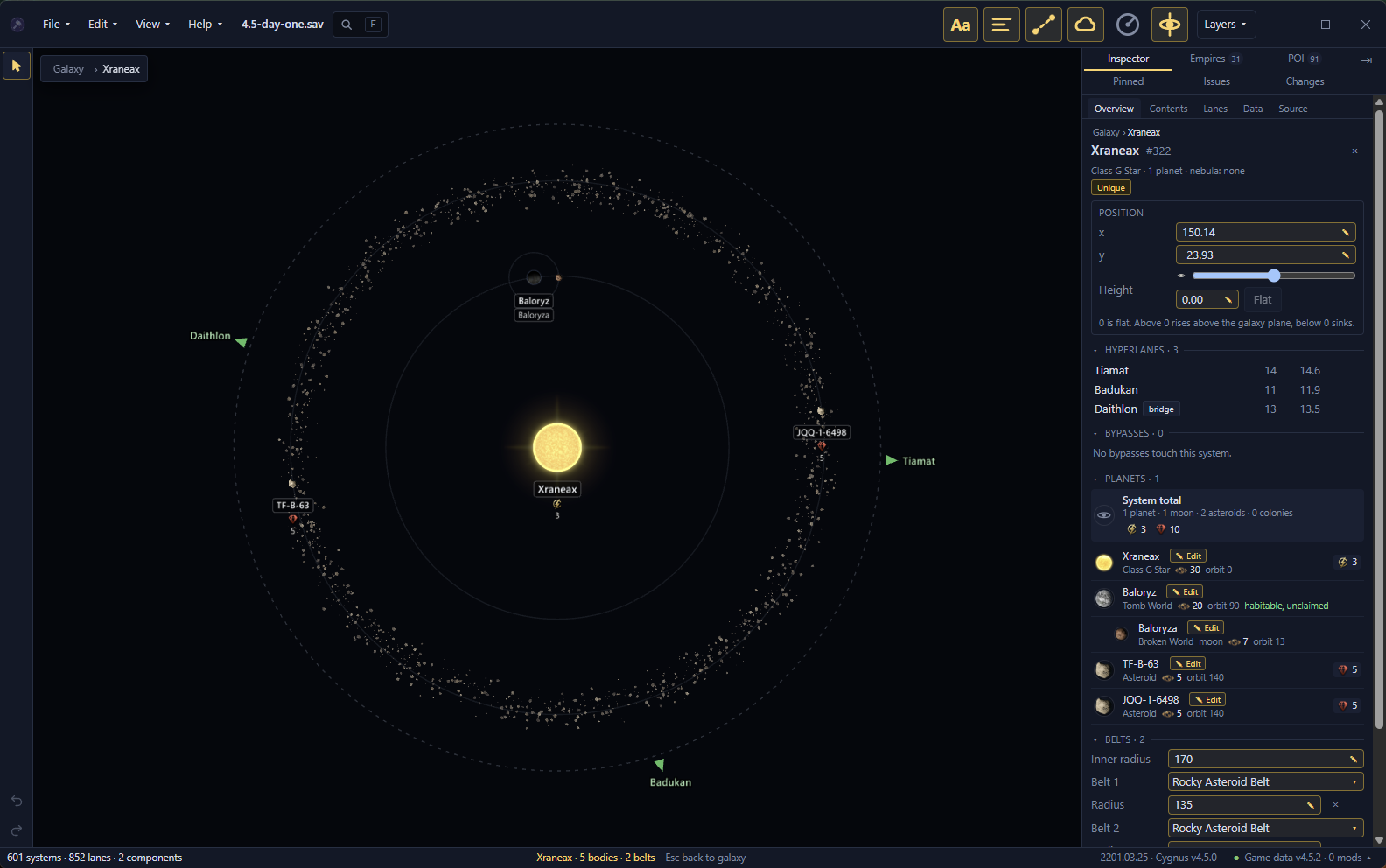
The status bar counts the system's bodies and belts. With a body's page open in the Inspector, it shows that body's orbit and angle.
See how a scenario system rolls Scenario
Systems in a scenario open the same way and show what their initializer sets. Where it leaves an orbit or an angle to chance, the view shows one possible layout. Click Roll again next to the system's name, or use View → Roll again, to see another. A random planet class shows a question mark.
Select a scenario body to see its ranges. The band is the range its distance can fall in, and the wedge is the range of its angle. The body or orbit that the distance and angle are measured from is outlined in blue. The body's page lists its orbit step, its angle step and whether it has a ring. Click the name in the angle step to go to the body it turns from.
A small dial before the angle step shows the turn as the system view does. The dot on its rim is the body it turns from. A shaded wedge is the range of angles it can stand at, and a line to a dot is a fixed turn. A fully shaded dial means any angle. There is no dial where a variable sets the turn.
Some blocks of an initializer place a range of planets, such as 2 to 10. The view draws every planet the block can place. The ones past the lowest count have a dashed halo, because the game may not place them.
A scenario system whose initializer is random, missing or unknown to your install gets its planets rolled when the game starts. An initializer that places its planets only through a script works the same way. The view shows faint placeholder planets for such a system, rolled by the game's rules for its star. The game rolls its own planets at the start, so they won't match the placeholders. You can't select the placeholders.
Rolled values and how many planets spawn Scenario
The system's page in the Inspector shows what the initializer places, in the same sections a save's page has. The line under the name counts planets only, as it does for a save. Moons and asteroids are counted in the System total row at the top of the Planets section. A count the game rolls shows as a range, such as "2 to 10 planets".
Values show in one of three ways:
- A value the initializer sets shows as plain text, as in a save.
- A value the game rolls when a new game starts shows in blue after a small die. Hover over the die to see "Rolled when a new game starts".
- A value the game decides in a way Galaxy Forge can't show is in grey italics with a question mark.
A value with a dotted underline has an explanation. Hover over it to read it. It says, for example, why the game decides a class when a new game starts or which variable sets a size. Ranges read "10 to 20".
Some initializers place a planet a random number of times. The Planets list shows those planets as one row, such as "Random planets", with the count at the right, such as "1 to 4". Hover over the count to see what it means. Click the row to open the first of them. A planet that may not spawn, because some games don't have it, shows "0 to 1". The system view still shows every planet the game can place, with a dashed ring on the ones not every game has. A star drawn from a star list has a Star class section that lists the list's star classes, likeliest first. Each has a bar in the star's colour and its odds.
A scenario system's Initializer section Scenario
The Initializer section starts with the initializer's name and the Change… button, or Choose… on a system that has no initializer. Under it are the kind of system it makes and the file it comes from. Click Open file to open that file in your editor at the initializer's line, or Show in folder to find it. Once you've picked an editor, the button names it, such as "Open in VS Code". Galaxy Forge doesn't change the file.
The rows below say which empire or creature the initializer creates, how many of these systems a galaxy can have, and which values come from a variable or an inline script. Three groups follow:
- Script at game start lists the lines the game runs once, when a new game starts. On a scenario map they run before hyperlanes exist. Where a line looks for a neighbouring system, a warning says it finds none.
- Random galaxy settings are the keys a random galaxy uses to decide how often to add the system. Your map already places it, so they have no effect. This group starts closed.
- Other initializer lines lists the lines Galaxy Forge keeps as written but doesn't show elsewhere.
Click a group's heading to open or close it. Script text shows as the file writes it, in the colours of the CWTools extension for VS Code. Click "Show all" under a long piece to see the rest.
The Source tab shows the system's own text, laid out one line per key as in a game file. Your file keeps its own layout. Text an edit changed is highlighted, with a bar at the left of its line.
Under the system's text, the Source tab shows its initializer as the file writes it, with the file's name above it. Each inline_script line ends with the script's name. Click the name to open that script in your editor.
A planet's or moon's page has a Source tab too. It shows the same initializer with a bar beside the block that places the body. For a body that comes from an inline script, the bar marks the inline_script line.
Nothing on a scenario system's page can be edited yet.
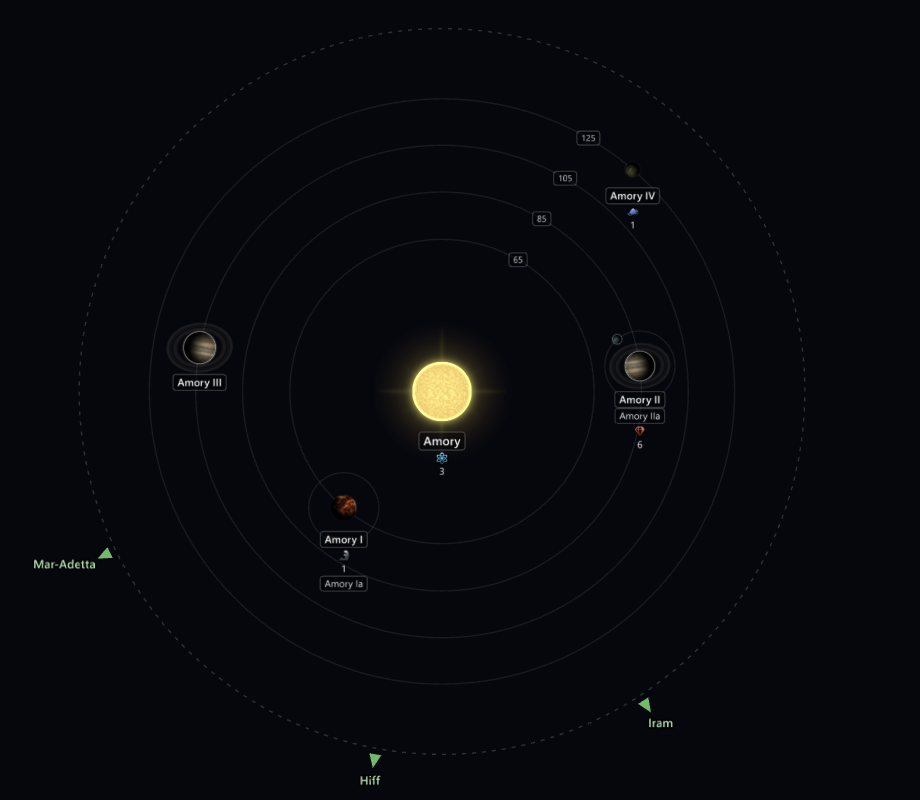
Show orbit radii
Press 2 in a system view to turn on Orbit radii. Each orbit shows its radius. The selected body always shows a line out to it with its radius.
Megastructures and starbases Save Scenario
Each megastructure and starbase in a system shows as its model from the game, at the size it has in game. A Dyson Sphere covers its star, and an Arc Furnace rings its planet. A megastructure built on a planet or moon stays with it when you move the planet. Ring world sections turn to face their star, so the pieces of a ring world join up.
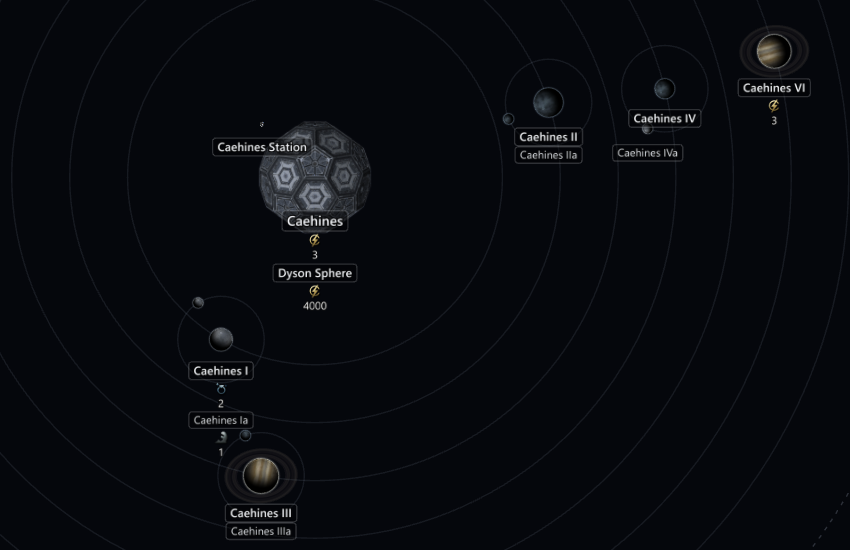
Habitats and ring world sections are planets, and they show as their models from the game too. You select, move and name them as you do any other planet. To add a habitat, see Add a habitat. To add a ring world with its sections, see Add a ring world.
Each megastructure and starbase shows its name on a plate under it while Names is on. One that covers a star or a planet, such as a Dyson Sphere or an Arc Furnace, has its plate under that star's or planet's plate. With System details on, a megastructure that produces resources, such as a Dyson Sphere or a Science Nexus, shows what it produces each month under its name. This is the base output, before your empire's modifiers, so the game can show a different figure.
Hover over a megastructure or starbase to see its name. Click its model to open its page in the Inspector. To select a planet or star under a megastructure, click the planet or star itself or its name plate.
Right-click a megastructure to inspect it or delete it. See Delete a megastructure.
The models are read from your Stellaris install. Galaxy Forge prepares them in the background after a save opens. A system you open straight away can take a moment to show them. A megastructure from a mod you don't have installed shows the game's megastructure icon instead.
Press 7 in a system view to hide them, or turn off Megastructures and starbases in the Layers menu.
To add a megastructure, right-click a body or empty space. See Add a megastructure.
In a scenario Scenario
A scenario system shows the megastructures and the starbase its initializer places, where the game puts them when a new game starts. You need the game data loaded.
- A megastructure placed at a planet sits on that planet. Click Roll again and it moves with the planet.
- A megastructure placed at a distance and angle from the star sits at that point, such as the ruined ring world sections in a fallen empire's home system.
- The starbase sits beside the star, where the game puts a system's first starbase.
- A megastructure or starbase the game may not place has a dashed halo. That covers one the initializer places only under a condition, and one on a planet the game may not place.
- The game places some ruins, such as a ruined gateway or a ruined Hyper Relay, at random when the game starts. Each shows faint at a typical spot, with "placed at random" after its name. A relay sits just outside the inner radius, and a gateway halfway between the inner and outer radius. You can't select these.
Models show without an empire's look, because a scenario's empires have no graphical culture. A fallen empire's ring world sections belong to the fallen empire, as they do in a new game.
You can't open the page of a scenario's megastructure or starbase, and you can't edit them. The system's page lists them in its Megastructures and Station sections.
Names and layers in a system
Each body's name sits on a plate under it. A colonised planet's plate has a bar in its owner's colour. Names, System details, Nebulae, Megastructures and starbases and, in a save, Bypasses still work while a system is open, with their own settings, so you can have them on in the galaxy and off in a system. With System details on, each body's resources show under its name. A colony's name shows its owner's flag. A body's name also shows icons for its archaeological site, anomaly and pre-FTL civilisation. While Megastructures and starbases is off, it shows an icon for its megastructures too. Hover over an icon or a resource to see what it is. A system inside a nebula shows faint clouds behind it while Nebulae is on. The other layer buttons and the tool strip are for the galaxy, so they are hidden while a system is open. Undo and redo still work from the Edit menu and their keys.
Go back to the galaxy
Press M, click "Galaxy" in the breadcrumb at the top left of the map, right-click and select Back to galaxy, or use View → Back to galaxy. Esc and Backspace go back too once the Inspector has no page left to step back from. The galaxy map is where you left it.