
Deposits and modifiers Save Scenario
These sections are on a planet's page, below its name, size and class.
Add or remove a deposit
Deposits show with the game's own art, one row per type. Each row says what the deposit yields, or what it does while unworked. The district capacity they all add up to shows at the top of the section. A blocked deposit shows a blocker mark, the tech and resources needed to clear it, and how long clearing takes.
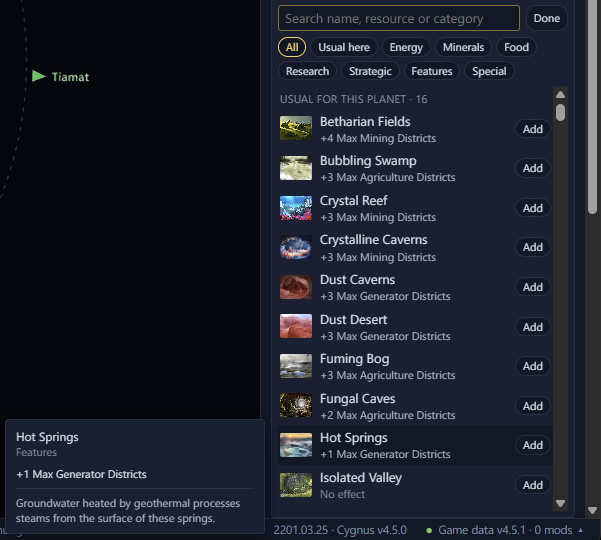
Remove a deposit with the ✕ on its row. To add one, click Add deposit under the deposits. It lists every deposit type except blockers, which have a list of their own. The ones the game places on that body come first, under "Usual for this planet". Type to search by name, resource or category, or pick a category chip. Special holds the deposits only events place. Orbital deposits of one resource, such as +1 to +10 Energy, share a row: click an amount to add that one.
Add blocker, under the Blockers heading, works the same way for blockers. Its chips pick the blockers a tech clears, the ones that need no tech or can't be cleared, and Special for blockers that do more than take away districts. The heading shows even when the body has none.
Both lists stay open until you click Done or press Esc. A mining or research station over a removed deposit stays in game and still costs about 1 energy a month.
The bottom of the deposit, blocker, modifier and archaeological site lists shows the game's description of the row you hover over. Without the pointer on a row, it describes the row the arrow keys are on.
Change deposits on a colony
Colonised planets take deposit edits too. The game applies them on its next monthly tick. When an edit may cost the colony districts, buildings or a clearing in progress, the page warns you first. You then click Remove anyway or Add anyway, or Cancel.
- Districts over a lowered cap are demolished. The save doesn't store the caps, so the page counts what the deposits give. It says "may" when something else adds to the cap too.
- A zone or building that needs the removed deposit goes, such as Crystal Mines without a rare crystals deposit, or the Xeno Zoo without Alien Pets.
- Removing a blocker that is being cleared cancels the clearing. What was spent on it isn't refunded.
When a planet finishes terraforming, the game changes its deposits, including any you added.
Add or remove a modifier
In a Stellaris 4.x save, the Modifiers section lists a planet's features and timed modifiers, each with what it changes and how many days are left. Remove one with the ✕ on its row. Add modifier, under the list, lists the modifiers that act on a planet, its pops or its jobs. Search by name or effect, or pick a chip: Features, Terraforming, Positive, Negative or Other. Pick Permanent or a number of days before you click Add. A timed modifier ends in game after that many days. Adding or removing a timed modifier does what the console's add_modifier and remove_modifier do. A planet feature also has a line of its own, which is added and removed with it, as the game writes a rolled feature.
With Gigastructural Engineering (Gigastructures), Add modifier also lists the Asteroid Industrial Site Candidate modifiers for alloys, consumer goods, energy, food and supertensiles. Add one to an asteroid to build that site there.
What a scenario planet can roll Scenario
In a scenario, the Deposits and Modifiers sections list what the initializer states. Under them, a heading such as "Can also roll · 3 resources" starts what the game can roll for the planet. When the initializer states none, it reads "Can roll · 4 resources". A modifier the initializer adds shows how long it lasts, such as "lasts 360 days" or "permanent".
The deposits show as one bar per resource, likeliest first. Each row starts with the resource's icon. A bar's length is how likely one roll is to give that resource, and its percentage is at the right. The bar is split by amount, from the smallest at the left to the largest at the right. A lighter shade is a smaller amount, and wide enough parts show their amount, such as "+2".
Hover over a row to see the resource's name, each amount with its chance, and the deposits that give it. A deposit that yields nothing, such as a blocker, has a plain bar of its own, with its name in place of an icon.
Where the class the planet rolls decides the odds, there are no bars. When the initializer states no deposits, the Deposits row at the top of the page reads "Suits its class", with a die. Click What it can roll under it to open the list. It starts with "Depends on the class it gets." Each resource is a chip with a dashed border, its icon and the amounts it can give, such as "+1 to +3". Hover over a chip to see each amount and the deposits that give it. The blockers are counted on one line, such as "Blockers: 5 kinds", and deposits that give no resource on an Other line. Hover over the count to see their names. When the initializer states deposits too, the same list is in the Deposits section, under "Can also roll".
Planet features are listed the same way, likeliest first, each with a bar and its percentage. A percentage there is how likely the first feature the game rolls is to be that one. Features with the same name are listed once. Where none of the odds are known, the list starts with "Depends on the class it gets." and the features show as one line of names, under the Planet features row or in the Modifiers section. A line of more than eight names ends with "+3 more", for example. Hover over it to see all of them.
Where the initializer leaves nothing to roll, there is no list, and no Deposits or Planet features row. A star with no planet features is one example. Where the class the game picks decides the roll and Galaxy Forge can't list it, the row or the section reads "Suits its class".
See what one class rolls
When a scenario planet can roll several classes, its Class row lists them under an Any button. Any is picked at first, and the page shows what every class could give, as described above. Click a class's icon or row to see the planet as that class. A line under the list reads "If it rolls Toxic World", for example. The Size row shows that class's range, and the Ring row shows its ring chance. The Deposits and Modifiers sections list what the planet can roll as that class, as on a planet whose class the initializer sets. Each shows a bar with its percentage where Galaxy Forge can work out the odds, and only its name where it can't.
Click Any, or the class again, to go back. Picking a class only changes what the page shows. The scenario stays as it is. A star rolled from a star list has the same buttons over its star classes.
Make a planet a terraforming candidate
A barren, frozen, toxic or grey goo world's terraforming candidate modifier is at the top of Add modifier, under "Usual for this planet". With it, the planet can be terraformed once the empire has Climate Restoration. Toxic worlds also need Detox. Frozen worlds also need Hydrocentric and an aquatic species, and can only become ocean worlds.
Add or remove an anomaly
In a Stellaris 4.x save, the Anomaly section shows the anomaly on a planet, moon or star: its name, which empires have found it, and the game's description of it. Remove it with the ✕ on its row. When it has none, Add anomaly lists the anomalies you can add. Search by name, or pick a level chip. The ones that can turn up on that body come first, under "Usual for this planet". Some only turn up on stars, such as the ones around pulsars and black holes. A body holds one anomaly, so the list closes after you add one.
If you have surveyed the planet, the added anomaly shows in game right away, ready for a science ship to research. If you haven't, it turns up when you survey the planet. Anomalies that run their own script when the game places them, such as precursor ones, aren't offered, because the game wouldn't run that script. The AI's own anomalies aren't offered either.
In an older save, a planet with an anomaly waiting on it shows an Anomaly row in About: the anomaly's name, and which empires have found it.
Add or remove an archaeological site
In a Stellaris 4.x save, the Archaeological site section shows a planet's archaeological site: its stage, its clues, whether a fleet is excavating it, and the game's description of it. Remove it with the ✕. A science ship excavating a removed site stops on the game's first day and waits in orbit. A planet without a site has Add archaeological site. Search by name, or pick Found by surveys or Event only. A planet holds one site, so the list closes after an add. Sites that run a script when the game creates them, such as Ruined Station and The Library, aren't listed, because the game wouldn't run that script for an added site.