
Add and delete systems Save Scenario
Right-click empty space on the map to add a system. The menu offers different choices in a save and in a scenario.
Add a system to a save Save
Right-click empty space and select "Add system here", then Random or a star class. Hover an entry to see its star, planets, belts and notable bodies.
Random can roll a binary or trinary too, about as often as the game does.
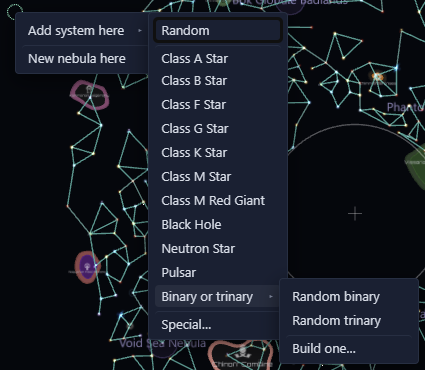
A system added inside a nebula joins it. To add many systems at once, draw a shape.
Stars from mods
The star classes include modded stars, even ones a mod places only through its own events, such as Gigastructures' class O star, quasar and Birch core. Picking one rolls one of the mod's systems for that star. Random never gives one.
Add a binary or trinary system Save
Right-click empty space and select "Add system here", then "Binary or trinary". Random binary and Random trinary roll one as the game would, from the game's own pairs and trios of stars.
To choose the stars yourself, select "Build one…". A picker opens beside the spot.
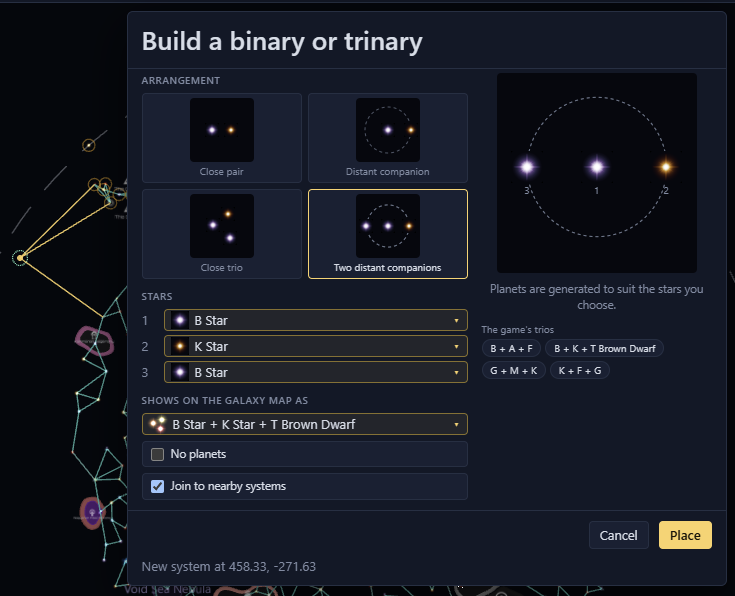
- Pick an arrangement. In a close pair or close trio the stars sit near the middle. A distant companion is a star far out with planets of its own.
- Pick each star. Any star type can go in any slot, and you can use one more than once. "The game's pairs" fills the slots with one of the game's own combinations.
- Press Place or Enter.
The preview shows where each star goes, numbered as the slots are. Planets are generated to suit each star, so a black hole gets few planets and no habitable worlds. Tick "No planets" to add the stars alone.
"Shows on the galaxy map as" is the star class the save records for the system. Stellaris shows that class's icon on its galaxy map and gives the system that class's effects, such as a pulsar's on shields. The picker chooses a class that fits your stars. Pick another to change it.
"Join to nearby systems" connects the new system to its neighbours, as in the Special list.
Add a special system Save Scenario
Right-click empty space in a save and select "Add system here", then "Special…". A list of the game's special systems opens beside the spot, with the map left in view. Type in the search field to find one by name.
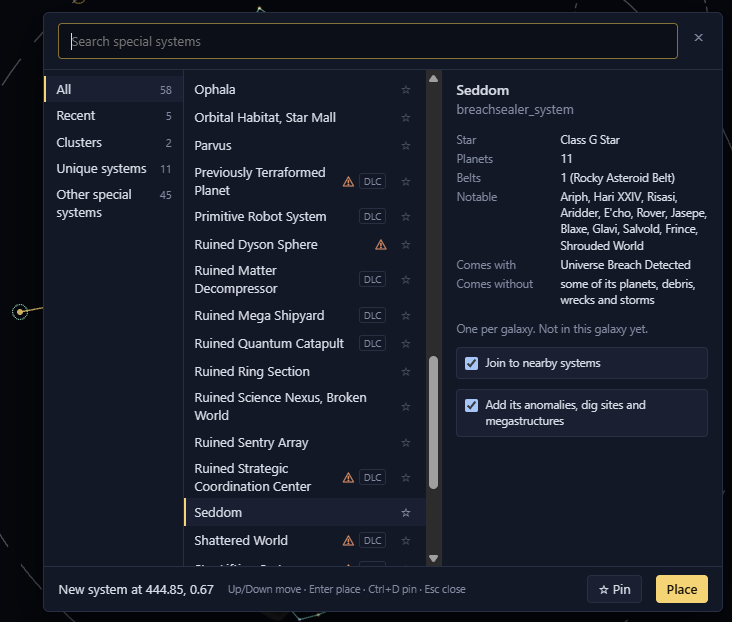
The list has these groups:
- Pinned and Recent. Press Ctrl+D or the star on a row to pin it.
- Clusters, such as Sol and its neighbours or the Junk Ratlings, which the game places as a group. Each row shows how many members it has.
- Unique systems, such as Zevox, Sol and Alpha Centauri.
- Other special systems, such as Trappist.
- One group for each mod that adds special systems.
Some rows show a mark:
- A warning mark means the galaxy already has that system and the game normally places only one. You can still add another.
- A DLC tag names the DLC the system belongs to.
- A lock means the save doesn't have the DLC the system belongs to. You can still add the system, but its events won't run.
The pane on the right shows the highlighted system's star, planets, belts and notable bodies. Press Place or Enter, or double-click a row, to add it at the spot. If the spot is too close to another system, the pane says so and Place is greyed out.
A cluster places all its members, joined to each other, as one edit, with its first member at the spot. The map shows where each one would go, and the pane lists them. Press Shuffle to roll their places again. A member that can't go where it was rolled shows red and the pane says why. Place stays greyed out until a shuffle or another spot works.
"Join to nearby systems" connects what you place to its neighbours, as a shape's New and nearby option does, so it isn't left as an island. The map shows these connections before you place. Untick it to place it unconnected to the rest of the galaxy. The picker remembers your choice.
A cluster's first system is also in the list on its own. Added alone, its events look for the rest of its cluster, which isn't there. The pane says so.
A special system comes with its own anomalies and dig sites, as the game gives them. The pane lists them under "Comes with", and what the system lacks under "Comes without". To add the system without them, untick "Add its anomalies, dig sites and megastructures". The picker remembers your choice.
A special system built round a ruined megastructure, such as a ruined Dyson Sphere or ring world, comes with its ruins too. Untick the same checkbox to add the system without them.
Some of what the game gives a special system is missing:
- Empires, colonies and pre-FTL civilisations. Sol's Earth, for example, is an uncolonised continental world.
- Fleets and guardians, and any starbase.
- An anomaly or dig site the script puts on a planet it picks at random, or a dig site on a star.
- Debris, wrecks and storms.
- Planets the game's script spawns there, such as Seddom's Huanghun. The pane lists these as "some of its planets".
If the galaxy already has the system, the game's events about it stay with the one that is there. The pane says so.
In a scenario, right-click empty space and select "New special system…". The same picker opens, with the clusters too. The game builds each system from its initializer when the galaxy is made, so there is no option to leave anything out and no "Comes with" or "Comes without" list. A DLC shows as a tag only: the game you start decides. The game also names the systems, so the pane lists a cluster's systems by their initializers.
Systems outside the galaxy edge
In a save, you can add systems past the galaxy edge, out to half again the galaxy's radius. The game puts some systems past the edge itself, such as the L-Cluster's. The map still draws the edge at the galaxy's radius.
Add system here and the Shape tool both stop at that limit. Further out, Add system here is greyed out with the reason under it, and a shape leaves those points out. You can still move a system further out once it is added.
In a scenario, the Shape tool reaches half again past the map's square, out to 750 on every side.
Reroll an added system Save
Reroll on an added system's page rolls new planets around the same star. For a special system, it builds that system again. Picking a different star class there rolls a regular system around that star. The name, position and lanes stay.
An added binary or trinary also has Arrangement, Stars and Map icon on its page. Changing one builds the system again around your choice. Pick "One star" under Arrangement to turn it back into a single star.
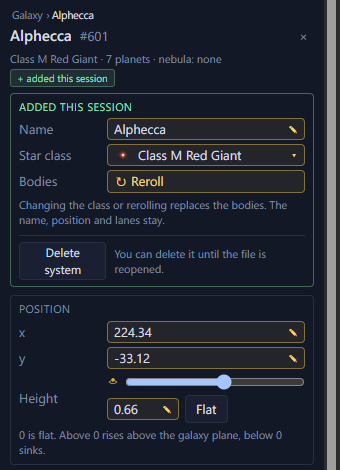
- 1Name
- 2Star class
- 3Reroll the bodies
- 4Delete system
- 5Position and height
Rename a system
In a save, you can rename a system you added this session. Type a new name in the Name field on its page. Its star and planets take the new name.
In a scenario, you can rename any system. Type into the name at the top of its page. A system with no name shows "Random name", and Stellaris picks one when the game starts.
Add a system to a scenario Scenario
Right-click empty space to add a system. "New system from…" adds one that spawns from the initializer you pick. To add many at once, use the Paint systems brush.
Delete systems
In a save, you can delete only the systems you added since you opened the file. To delete one, select it and press Delete, or right-click it and select "Delete system". To delete several, select them and click "Delete N added systems" at the bottom of the Inspector, or right-click one and select "Delete N added systems". Systems the save already had can't be deleted.
In a scenario, select systems and press Delete, or click "Delete N systems" at the bottom of the Inspector, to remove them.