
Initializers Scenario
An initializer is a definition, from the game or a mod, of what a system spawns: its star, its planets and anything else the game places there.
Choose a system's initializer
Select one or more systems and press Shift+I to open the initializer browser. Pick an initializer to see what it places, then click Assign to give it to the selected systems. With several systems selected, the Scripts block under "Set for all" in the Inspector also sets their initializer.
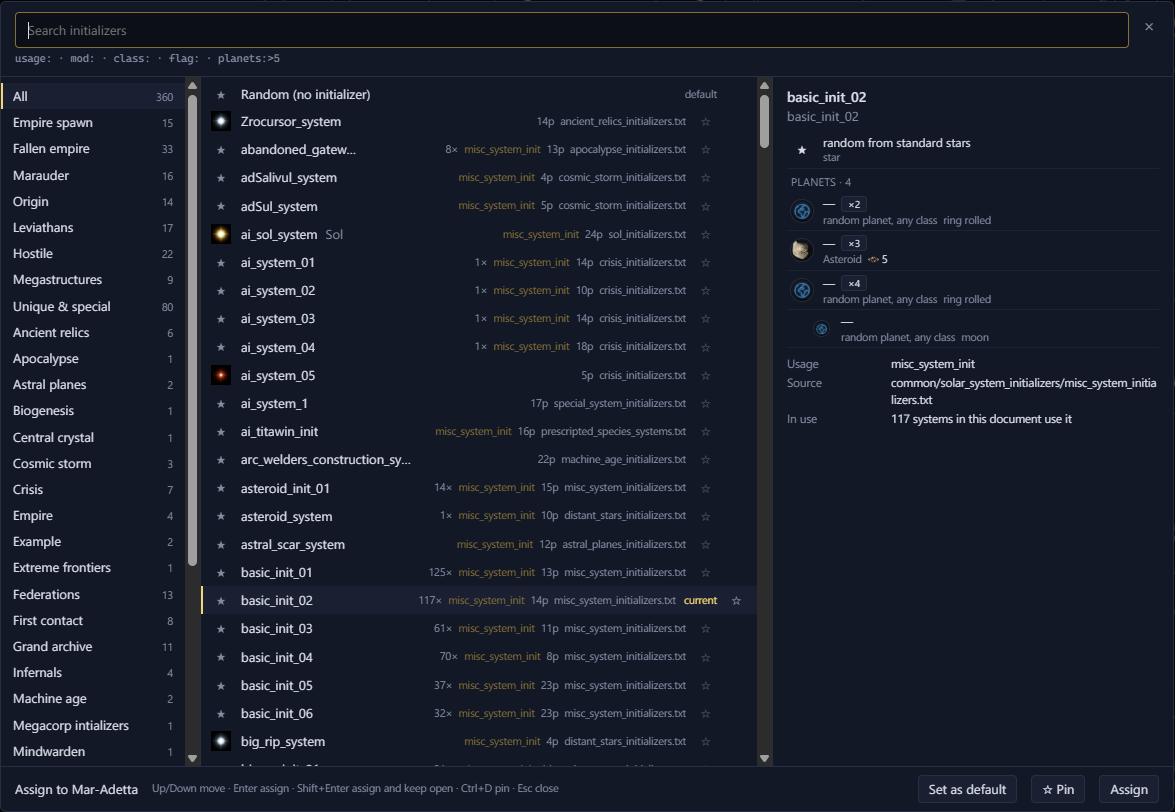
- 1Search, with the filter prefixes listed under it
- 2Groups
- 3Initializers, with how often each is used, its planet count and its file
- 4What the selected initializer places
- 5Set as default, Pin and Assign
Set as default makes the initializer the one a new system spawns from when you right-click empty space and select "New system". Pin adds it to the Pinned group at the top of the list, and Ctrl+D does the same.
To add a new system from an initializer, see Add a system to a scenario. The system view shows what a system's initializer places, with an example roll where it leaves things to chance.
Filter the list
Type words to filter the list. An initializer shows only when it matches every word. Use these prefixes to search one field:
| Filter | Matches |
|---|---|
usage: | The initializer's usage, as its file writes it |
mod: | The mod's name, or the file the initializer is in |
class: | The star class, as the file writes it or the game names it |
flag: | The initializer's flags |
planets:>5 | Initializers with more than 5 planets. planets:<5 and planets:5 work too. |
The Initializer keys layer shows each system's initializer on the map.
Open a script in your editor
Galaxy Forge shows script text but doesn't change it. To edit a script, open its file in your own editor at the line you're reading. The Open file button sits in the Initializer section, beside each script on the Scripts tab, on the Source tab, on a body's page and in the header of each script snippet. Where a value comes from a variable or an inline script, click its name to open the file where it's set.
The first time you click it, Galaxy Forge asks which editor to use. It lists the editors it finds on your computer: VS Code, VSCodium, Notepad++, Sublime Text, JetBrains IDEs and Kate. "System default" opens the file in the program your computer opens .txt files with. For "Other…", click Browse… to pick the program, then type its arguments, where {file} is the file and {line} the line.
With "Remember my choice" ticked, later files open straight away, and the button names the editor, such as "Open in VS Code". Untick it to choose each time. To change the editor or forget it, open the Help menu and select "Change editor…" or "Forget editor".
Files of the game and of Workshop mods open too, but Steam replaces them when the game or the mod updates, so changes you make there are lost. The chooser and the status bar say so each time you open one. Copy the file into a mod of your own before you edit it.
While a scenario has unsaved edits, its file on disk doesn't match what you see, so the scenario's own file opens at the top. Save first to open it at the line.
If the editor doesn't start, the file opens in the system default instead, and the status bar says so.