
Game data and mods Save Scenario
Galaxy Forge reads star art, names, planet classes and initializers from your Stellaris install and the mods in your playset. The app calls this game data. Nothing from the game comes with Galaxy Forge. It reads game data each time it starts, unless you turn off Load at start.
Set it up the first time
The first time you start Galaxy Forge, a "Before you start" card asks about game data. Leave "Load Stellaris game data" ticked and click Continue. Galaxy Forge finds a Steam install automatically. Loading takes a few seconds at each start.
If you installed Stellaris somewhere else, click "Change install…" and pick the Stellaris folder.
Point it at Stellaris
When Galaxy Forge can't find the game, the card says "Stellaris was not found". Click "Locate Stellaris…" and pick the folder the game is in, such as steamapps\common\Stellaris in your Steam library.
Once a file is open, "Locate Stellaris…" is in the Game data panel too.
Find your mods and saves
Stellaris keeps your mods, your playset and your saves in one folder, apart from the install. It is usually Documents\Paradox Interactive\Stellaris. If you moved it, for example to another drive, and set the new place in the game's launcher settings, Galaxy Forge finds it there. The card and the Game data panel then say "from the game's launcher settings" after the folder.
When the Mods and saves row says "no mods found", click "Locate mods and saves folder…" and pick the folder that holds your mod folder, dlc_load.json or save games folder. Picking the mod folder itself works too. Galaxy Forge remembers it, and the Open screen lists the saves in it. "Use the default folder" goes back to the folder Galaxy Forge finds by itself.
Check what it loaded
The Game data button is at the right end of the status bar. It shows the game version and how many mods it loaded, such as "Game data v4.5.1 · 0 mods". Click it to open the panel.
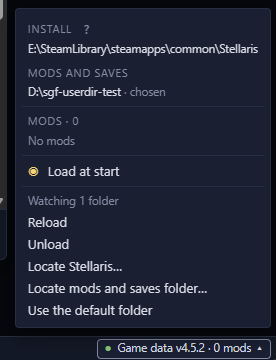
- Install shows the Stellaris folder it reads.
- Mods and saves shows the folder your mods, playset and saves are in. "Locate mods and saves folder…" picks another one.
- Diagnostics lists files it couldn't read, when there are any.
- Mods lists the mods in the playset Stellaris last started with, in load order. A mod marked "missing" is in your playset but its files aren't on this machine.
- Load at start reads game data each time the app starts.
- Reload reads the install and your playset again. After you change your playset in the launcher, start Stellaris once with it, then click Reload.
- Unload clears game data from the app until you load it again. Your game files stay as they are.
Keep up with mod updates
While game data is loaded, Galaxy Forge watches the install and mod folders. When a file in them changes, such as a mod update, it reloads that part by itself. The panel says how many folders it is watching.
If files change too often, the status bar shows "Auto-reload paused". Click Resume to start watching again.
Work without game data
You can edit without game data. The button then says "Game data off", or "Game data unavailable" when it couldn't read the install. The map shows plain stars and generated names. "Load now", in the panel or under the Open screen's list, reads game data straight away.
You need game data for:
- Adding systems, planets and moons.
- Changing a star's class or a planet's class and look.
- The initializer browser, and the Initializers and Scripts layers in a scenario.
- The Precursors layer.
- Sorting a scenario's systems in Prepare for a new game.