
Draw shapes of systems Save Scenario
The Shape tool (O, "Draw shapes" on the tool strip) places new systems in an exact shape: a ring, a straight row, a star, a swirl, a circle filled at random or in a grid, or a galaxy in one of the game's galaxy shapes. It works in Stellaris 4.x saves and in scenarios. A 3.x save doesn't offer the tool.
Draw a shape
- Press O, or select Draw shapes on the tool strip.
- Pick the shape at the top of the options: Line, Circle, Polygon, Rectangle, Star, Swirl or Galaxy.
- Drag on the map to draw it. Until you do, the tool shows the shape at the centre of the galaxy.
The shape stays pending until you place it. The map shows what it would add:
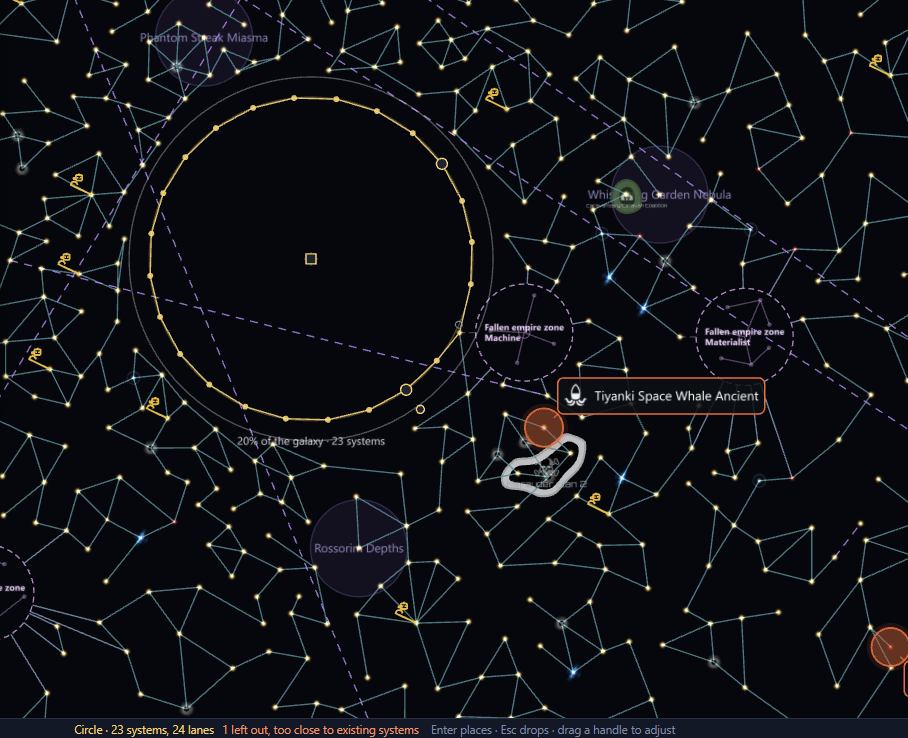
- Gold dots are the new systems, and lines between them are the new lanes.
- Hollow dots are points left out because they are too close to an existing system.
- Orange dots are points too far out, and they are left out too. Points can go past the edge of the map, up to half again as far out: past the galaxy's circle in a save, or past the map's square in a scenario.
A faint ring marks the edge of the galaxy, so you can judge the size. The readout below the shape gives its size and system count, such as "20% of the galaxy · 23 systems".
The options are grouped under Shape, Fill, Size and form, Systems and Lanes, with Place at the bottom.
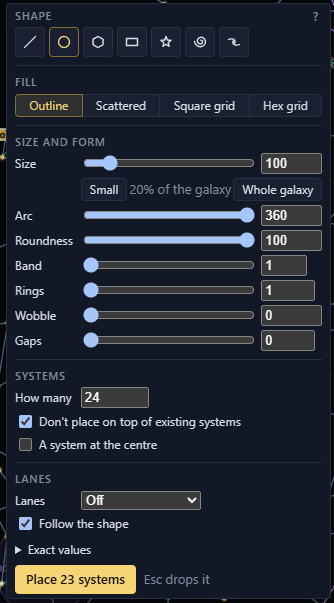
Press Enter or the Place button to add the systems and lanes. Placing is one undo step. Press Esc to drop the pending shape, and Esc again to go back to the Select tool.
In a save Save
A shape adds many systems to a save at once. How many depends on its points, up to 200. It is meant for clusters, not whole galaxies. A scenario allows 1,000.
- Galaxy Forge keeps new systems at least 10 units from every other system, the spacing the game spawns systems at. Points closer than that are always left out, whatever "Don't place on top of existing systems" says. System density stops at a spacing of 10.
- The status bar also counts points left out because they were too close to each other.
- The edge of the map is the galaxy's own circle.
- Each new system gets planets and deposits for its star, as "Add system here" does for one system. Names don't repeat.
Afterwards you can change each new system like any added system: pick a different star class or Reroll it on its page, or delete it while the save is open. The whole shape is one undo step.
In a scenario, the shape adds plain systems. The game fills them when it makes the galaxy.
Stars Save
Stars chooses the star class of the systems a shape adds to a save:
- Random, the default, uses the game's usual mix.
- A star class, listed between Random and A mix…, gives every system that class.
- A mix… uses only the classes you tick, rolled by the game's odds.
Special systems such as Sol are not offered. The preview colours each point as its star, and Shuffle rolls the stars again.
To make a cluster of black holes, pick Black hole.
The shapes
- Line is a straight row of systems.
- Circle places systems in a ring. Set Arc below 360° for an arc, or set Roundness below 100% to squash it into an oval (an ellipse).
- Polygon has 3 to 12 sides.
- Rectangle is a rectangle, or a square with Shift held.
- Star has 4 to 12 points. Inner radius sets how far out the dips between them sit, as a share of the radius.
- Swirl has 1 to 6 arms that spiral out from its centre, each a single line of systems. Turns sets how far round each arm winds. Inner radius sets where the arms start, as a share of the radius. Drag from the centre to where the first arm should end. The systems are shared evenly among the arms.
- Galaxy draws one of the game's galaxy shapes. See Lay out a galaxy.
Lay out a galaxy
Galaxy draws one of Stellaris's galaxy shapes, at any size, like any other shape: Elliptical, Spiral with 2, 3, 4 or 6 arms, Ring, Barred Spiral, Starburst, Cartwheel or Spoked. Pick one under Galaxy shape, the first row of Size and form. The list uses the names from your game, and hovering it shows the game's description of the shape you picked. Until game data is loaded, the list shows the game's own keys, such as spiral_2.
Drag outward from where its middle should be, as for a circle. Drag the turn handle, or set Rotation under Exact values, to turn the arms.
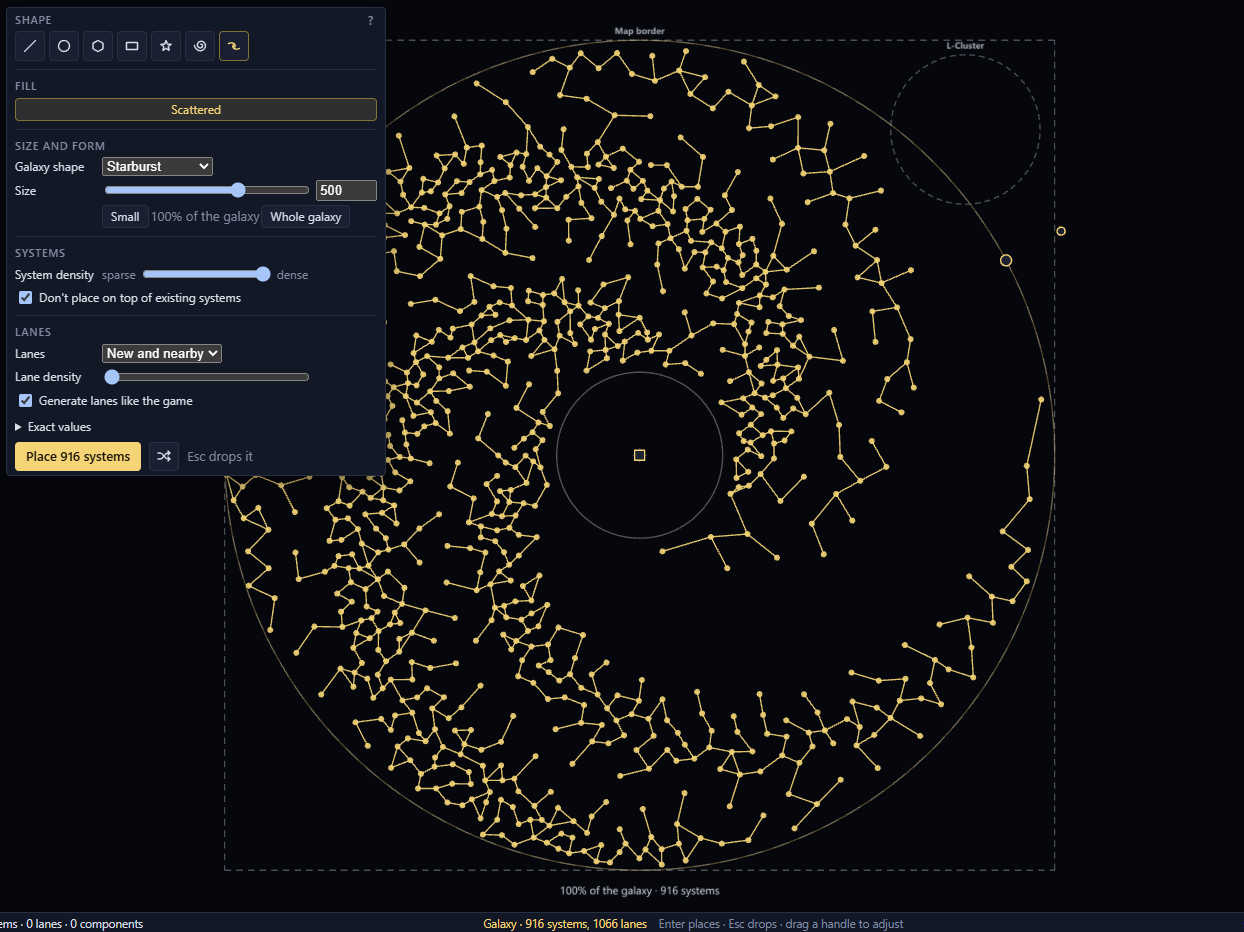
A galaxy is always filled at random, and no system lands outside its circle. The systems sit closest together in the arms. The core, the gaps between arms and the rim are sparser, as in the game. Shuffle rolls a new layout.
A galaxy's systems always join up into one network, unless Lanes is Off. With New and nearby, a part linked to existing systems counts as joined through them. With symmetry on, a part can stay apart where no lane can join it in every copy.
The game builds its galaxy shapes itself, so these are look-alikes, modelled on galaxies Stellaris 4.5 generated.
Move, resize and turn a shape
Handles on the pending shape adjust it:
- Drag the centre handle, or anywhere inside the shape, to move it.
- Drag a size handle to resize it.
- Drag the turn handle to rotate it.
The centre snaps to the middle of the galaxy and to systems, which makes a ring around a home system exact. A rotation within a few degrees of a 45° step catches on it. Hold Ctrl when you press the mouse button to turn this snapping off. Shift holds angles to 15° steps and keeps a rectangle square.
[ and ] make the pending shape smaller and larger, and can take it past the size of the galaxy.
Outline, scattered or grid
The Fill bar, under the shapes, sets where the systems go:
- Outline puts them along the edge of the shape only.
- Scattered fills the shape at random, as the Paint brush does.
- Square grid fills it in rows and columns.
- Hex grid fills it in a honeycomb pattern.
A line and a swirl have only Outline. A filled arc fills the slice between the arc and its centre, so an arc of 180° fills a half disc.
For a filled circle, polygon or star, Hollow centre leaves the middle empty, as a share of the radius. A filled circle with a hollow centre is a donut. With "Line the edge with systems", the edge of the hole gets a row of systems too.
For a scattered or grid fill, "Line the edge with systems" also places a row of systems along the edge. The fill stays about one spacing inside the row. It starts ticked for a scattered fill and unticked for a grid. Untick it on a scattered fill to leave only scattered systems inside the shape, with lanes as natural as painted ones.
Size is a slider, with Small and Whole galaxy buttons for the two ends. For an outline, set the number of systems on the edge with "How many" under Systems. For a scattered or grid fill, System density sets how close together they are, from sparse at the left to dense at the right. The dense end is the closest spacing that still fills the whole shape. Shuffle, the button beside Place, rolls a scattered fill again.
Exact values, folded under the options, take typed numbers for the centre, the radius or the width and height, and the rotation. For a scattered or grid fill, Spacing there is the distance between neighbouring systems, in game units.
Bands, rings, gaps and wobble
An outline has four more options, under Size and form. Each one starts off, so the outline stays a single row of systems until you change them.
- Band makes the outline 1 to 5 systems thick. The systems are scattered within the band, so a ring looks grown rather than drawn. On a small shape, an inner row that would reach the centre is left out.
- Rings adds smaller copies of the outline inside it, each at least a spacing from the next, for an onion galaxy. With Band, the rings move apart to make room for it. The copies keep the same spacing between systems, so the inner rings have fewer systems. Circles, polygons, rectangles and stars have Rings.
- Gaps opens breaks in the Follow the shape lanes, spread evenly, to make chokepoints. It shows while Follow the shape is on. Lanes doesn't add a lane across a gap, so the gap stays open. Lanes can still join one ring to the next.
- Wobble moves each system at random, up to half the spacing, so the shape looks less exact. A square or hex grid can wobble too.
Band and Wobble are random. The pending shape keeps the same layout while you adjust it. Shuffle rolls a new one, and so does drawing a new shape.
Arrange hides Band, Rings and A system at the centre, because the number of systems is fixed to the selection. Gaps and Wobble still work, and Arrange wobbles at most 80%, so the systems stay clear of each other.
A system at the centre
A system at the centre, under Systems, adds one system at the centre of a circle, polygon or swirl outline. If a system already stands there, the centre point is left out.
Lanes
- Follow the shape joins each system along the edge to the next, and closes a ring. No other lanes run between two systems on the edge, so a star or ring keeps a clean outline. Systems inside the shape and nearby still link to the edge. It is on for an outline. A fill without its edge row has no systems along the edge, so the option is hidden.
- Lanes works as it does for the Paint brush: Off, Among new, or New and nearby, which also links the shape to the systems around it. A scattered or grid fill starts on Among new.
- Lane density sets how many lanes the shape adds. The left end lays the fewest lanes, and the new lanes form no loops of their own. At the right end, each system links to every neighbour.
- Generate lanes like the game groups the new lanes into small clusters joined by single lanes, as the game does, instead of an even mesh. The single lanes between clusters make chokepoints. Under New and nearby, the lanes out to the rest of the map are the usual mesh. Each kind of shape remembers it. It starts on for a galaxy and off for the other shapes. Shuffle draws the clusters again. The option is hidden while Lanes is Off.
- Spokes to the centre joins the centre system to every system on the outline. It shows once A system at the centre is ticked under Systems. With Rings or Band, the spokes go to the innermost ring or row only. On a swirl, they go to the inner end of each arm. If a system already stands at the centre, the spokes run to that system, so a ring round a home system can have spokes to it.
New lanes never cross an existing lane or each other.
Keep clear of existing systems
"Don't place on top of existing systems" is on by default. It leaves out any point too close to a system that is already there. The status bar says how many, such as "3 left out, too close to existing systems". Untick it to place every point. In a save, points within 10 units of a system are left out either way.
Use symmetry with a shape
Symmetry copies the shape around the centre of the galaxy or mirrors it. Copies that land on each other become one, so a circle centred on the pivot isn't doubled. While symmetry is on, the options show a Symmetry line with the choice and how many copies it makes.
Each copy of the shape gets its own gaps. A ring centred on the pivot gets the gaps of every copy, so choose a number of gaps the copies divide. With four copies, 4 or 8 gaps stay as you set them.
Arrange works only with symmetry off, because it moves only the systems you selected.
Arrange a selection
Arrange moves systems you already have onto a shape, such as a ring of systems you painted by hand.
- Select the systems.
- Right-click one of them and pick Arrange…. The Inspector has the same action as "Arrange in a shape…" in the Shape block of its Position section.
- Adjust the shape. It starts centred where you right-clicked and sized to fit the selection. The first time it is a circle. After that it is the last shape you arranged into.
- Press Enter or Arrange 7 systems.
The map shows where each system goes. The count is fixed to the selection. Each system goes to the nearest free point, so their order around a ring follows where they were. Outline puts them along the edge, and a scattered or grid fill spreads them evenly inside the shape. A galaxy spreads them along its arms.
The whole arrange is one undo step. Esc moves nothing and puts back the tool you had.
When arranging, Lanes chooses what happens to the lanes between the selected systems:
- Keep, the default, keeps every lane. Each lane stretches to follow the move. A lane that would cross another lane, run along one, or pass through a system is orange in the preview.
- Rebuild takes those lanes out and adds new ones, as a new shape would: Follow the shape, Lanes, Lane density and Generate lanes like the game work as above. New and nearby joins the arranged systems back to the systems around them.
- Clear takes those lanes out and adds none.
Lanes to systems outside the selection stay and stretch to follow. Under Rebuild and Clear, tick "Also remove lanes to other systems" to take those out too. With Rebuild, New and nearby can join the arranged systems back in.
Arrange won't place a system on top of another. If points of the shape land within 10 units of a system you didn't select, or past the edge, the Arrange button is off and says why. Move or resize the shape until they fit.
Erase with a shape Scenario
Hold Alt and drag with the Shape tool to erase every system inside the shape you draw, as Alt turns Paint into Erase. The systems to be erased are ringed in orange until you let go. As with the Erase brush, special systems stay unless you set the Erase brush to take them. A line or a swirl has no inside, so it erases nothing. A galaxy erases everything inside its circle. A shape with a hollow centre leaves the systems in the hole.
Shapes remember their settings
Each shape remembers its own options. The next Circle you draw starts with the last Circle's settings. With no shape pending, the options set what the next shape starts with.