Brushes and symmetry Save Scenario
The brushes on the tool strip work in broad strokes. Each stroke is one undo step. While a brush is active, its options show beside the tool strip. Every brush has a Size option, and [ and ] resize it too.
Connect and cut lanes with a brush
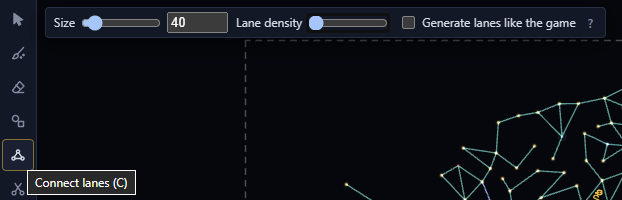
The Connect lanes (C) and Cut lanes (X) brushes add and cut hyperlanes under the brush. Holding Alt swaps the two. The Connect brush has a Lane density option. The left end lays the fewest lanes, and the new lanes form no loops of their own. At the right end, each system links to every neighbour. Generate lanes like the game is ticked by default. It links the swept systems in small clusters joined by single lanes, as the game does. Untick it for an even spread of lanes.
Paint and erase systems Scenario
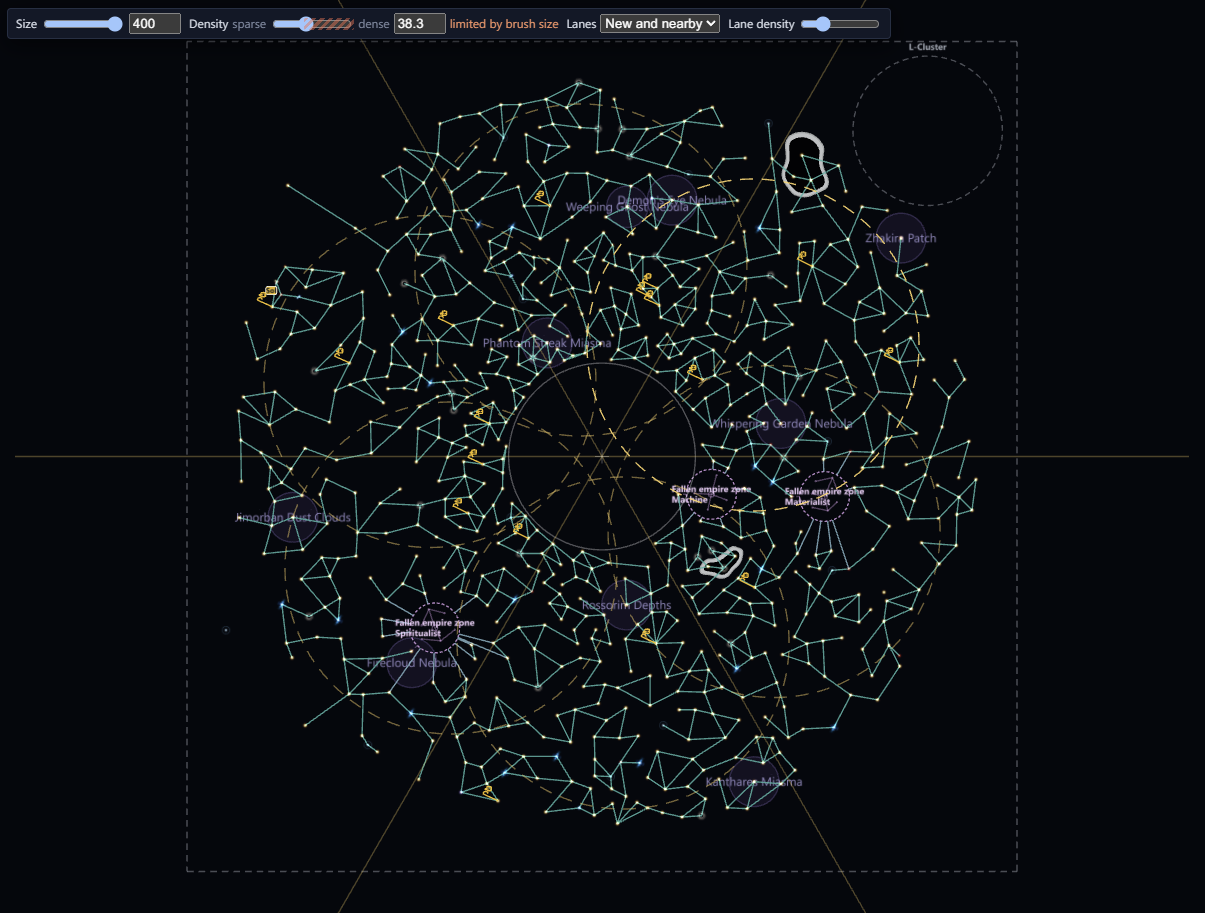
Paint systems (B) scatters new systems under the brush and joins them with lanes. Erase systems (E) removes them. Holding Alt swaps the two.
Paint has these options:
- Density goes from sparse to dense. The number beside it is the distance between painted systems.
- Lanes picks which lanes a stroke adds: Off, Among new, or New and nearby, which also links the new systems to the ones around them.
- Lane density sets how many lanes a stroke adds. The left end lays the fewest lanes, and the new lanes form no loops of their own. At the right end, each system links to every neighbour.
- Generate lanes like the game links the new systems in small clusters joined by single lanes, as the game does. It is ticked by default. Untick it for an even spread of lanes. Lane density still sets how many lanes each cluster keeps. Under New and nearby, the lanes to the systems around the stroke are the usual mesh. The option is hidden while Lanes is Off.
The Connect brush, Paint, the Inspector's Nearby choice and Link nearby in the right-click menu share Lane density and Generate lanes like the game, so a change in one shows in the others.

Erase has these options:
- Target sets what the brush removes. Systems removes the systems and their lanes. Lanes only removes the lanes and leaves the systems.
- Tick Also erase special systems to let the brush remove systems with an initializer, a spawn point or another special role. Leave it unticked to keep them.

To lay systems out in a ring, a line or a star, use the Shape tool on Draw shapes of systems.
The Height brush (H) is on the System heights page.
Spread and gather systems
Spread systems (R) moves the systems under the brush towards even spacing. Drag it over a clump to spread the systems out, or over a hole to close it up. It adds and removes nothing. Hold the brush still to keep spreading. Holding Alt turns it into Gather, which pulls the systems under the brush towards its centre.
Spread has these options:
- Strength sets how far each pass moves a system.
- Tick Also move special and home systems to let the brush move points of interest such as guardians and fallen empires, spawn points, wormhole and gateway systems, and empires' homes. Leave it unticked to keep them in place. With no game data loaded, the brush can't tell which systems are points of interest, so only the others stay.
Lanes stay, and their lengths follow the systems. A move that would make two lanes cross stops short, and the brush moves no system further out than a new system can be added: half again the galaxy's radius in a save, or half again past the map's square in a scenario. In a save, the brush stops a system short rather than bring it closer than 10 units to another, the gap the game keeps between systems it places. Two systems already closer than that can still move apart. Under symmetry, each system's copies move with it, and a system on a mirror line or at the centre of a rotation stays on it. Each stroke is one undo step.
Use symmetry Scenario
In a scenario, symmetry mirrors your edits around the centre of the galaxy or repeats them around it. Click the Symmetry button under the tools and pick "Mirror left–right", "Mirror top–bottom", or a 2-, 3-, 4-, 6- or 8-fold rotation. Shift+M turns symmetry off, and on again with the last choice. Saves have no symmetry.