
Select and move systems Save Scenario
Most edits start by selecting systems.
Select systems
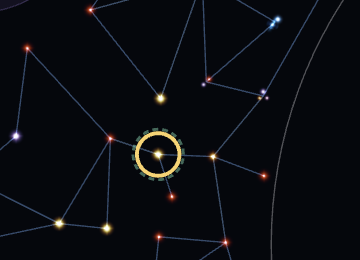
Click a system to select it. Ctrl+click adds or removes one, and dragging on empty space draws a selection box. Esc clears the selection.
Move a system
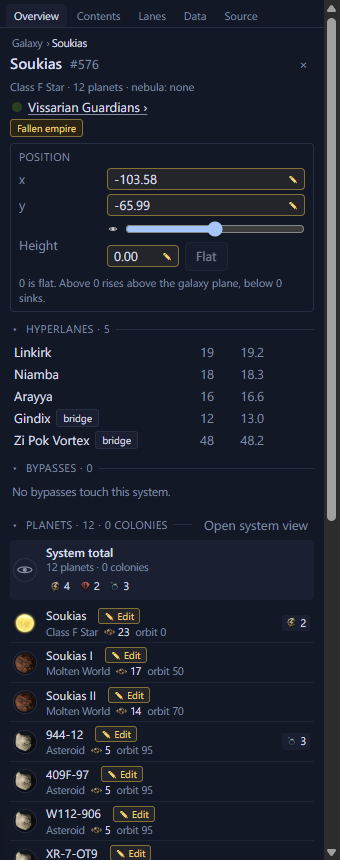
Drag a star to move it. If it is part of a selection, the whole selection moves. Shift+arrow nudges the selection. For an exact position, type coordinates into the Position fields on the Inspector's Overview tab. A moved system keeps its hyperlanes and their lengths are updated. Its planets and fleets move with it.
You can move a system past the galaxy edge, as far out as you like. To add new systems out there, see Systems outside the galaxy edge.
Rotate a selection
To turn a group of systems, select two or more. A round handle appears above them on the map. Drag it to turn the selection about its centre. Hold Shift to snap the turn to 15°. To turn about another point, drag the pivot marker there first. Once you have moved it, the Pivot row in the Inspector's Position section reads "moved", and its Centre link puts the pivot back.
For an exact turn, use the Rotate block in the Inspector's Position section. Type an angle in the Degrees field and press Enter or click Rotate, or use the 90° left, 90° right and 180° buttons. A positive angle turns clockwise. The typed angle stays in the field, so you can apply it again.
Nebulae centred inside the selection turn with it. Untick Nebulae too to leave them where they are. Each turn is one undo step.
Swap two systems
Two systems can trade places on the map. Each one takes its name, star, planets, starbase and owner to the other's place. The hyperlanes stay where they were, so each system takes over the other's neighbours. A hyperlane between the two stays.
- Select the two systems.
- Right-click one of them and choose Swap systems, or click Swap systems in the Swap block of the Inspector's Position section.
With one system selected, you can also right-click another system and choose Swap with and the selected system's name.
Each place keeps its height. A system that lands inside a nebula joins it, and the one that leaves drops out. In a save, an empire's border follows the systems it owns. Press Ctrl+Z to swap them back.
To remove systems, see Delete systems.