
The window Save Scenario
The map fills the middle of the window. The menus and layer buttons are above it, the tool strip is on the left and the dock is on the right.
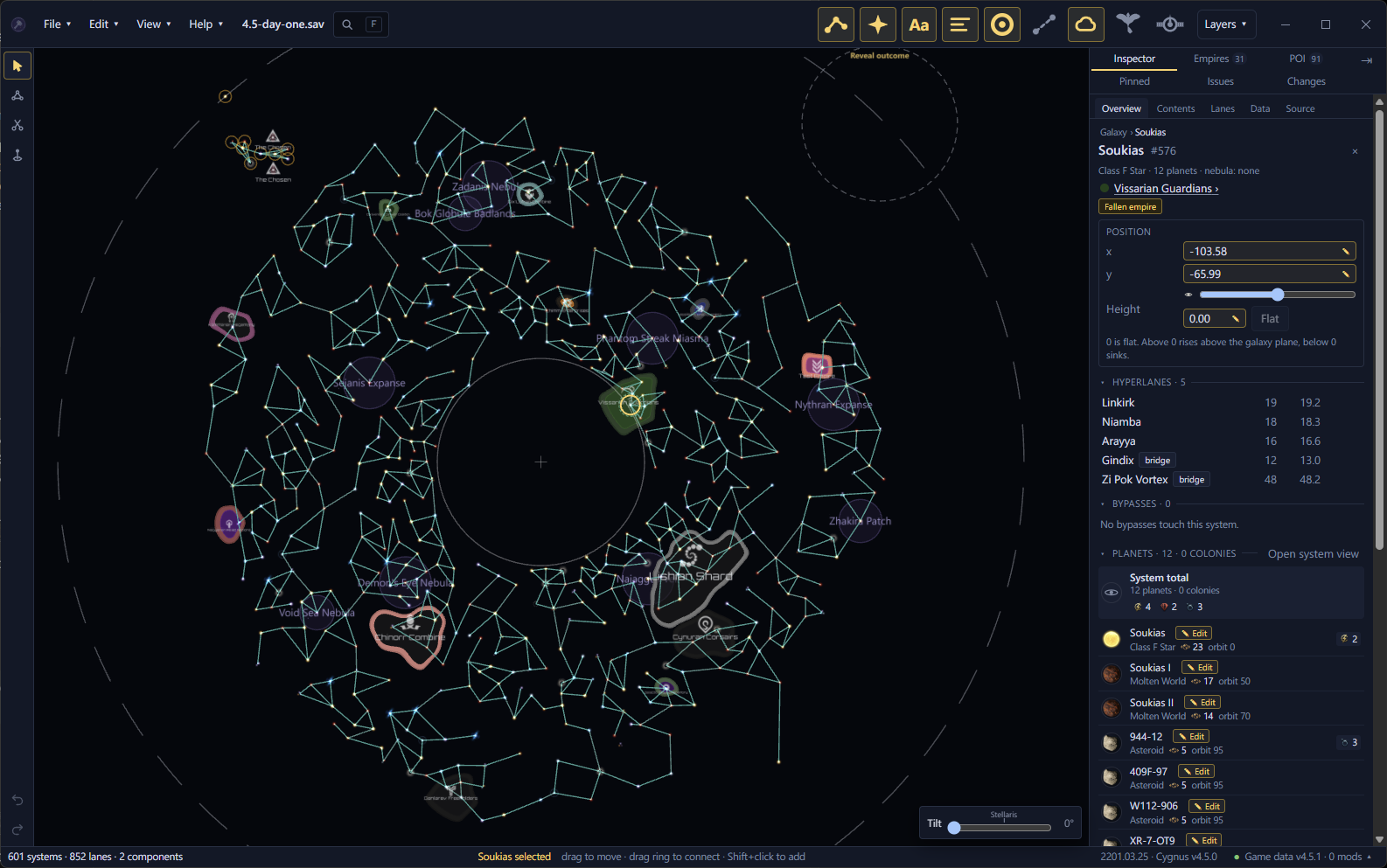
Find your way around the window
- The File, Edit, View and Help menus, and the name of the open file.
- Search. Press F to find a system, empire or planet. See Search.
- The layer buttons switch the main layers on and off. The Layers menu at the end lists every layer. See Layers.
- The tool strip: Select, Connect lanes and Cut lanes. A save adds the Height brush, and a scenario adds Paint systems, Erase systems and Draw shapes. See Brushes and symmetry and Draw shapes of systems.
- The map. See Move around the map.
- The dock tabs: Inspector, Empires, Points of interest, Pinned searches, Issues and Changes.
- The Inspector shows what you selected. With nothing selected, it shows the whole galaxy.
- Undo and redo. Point at one to see which edit it undoes or redoes. See Undo and the Changes tab.
- Tilt, in a save. It tilts the map so you can see system heights. The Stellaris mark is the game's own camera angle. Double-click the slider to lay the map flat.
- The status bar. On the left it counts systems, lanes and components. A component is a group of systems joined by lanes, cut off from the rest. In the middle it names what you selected and says what the mouse does there.
- The Game data button shows the game version and how many mods Galaxy Forge loaded. See Game data and mods.
Tab hides the dock and shows it again, so the map gets the whole width.
On a Mac, read Cmd wherever this guide says Ctrl.
Use the File menu
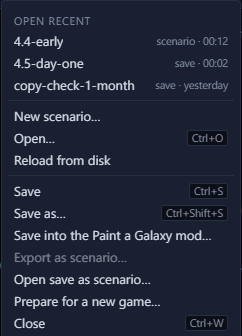
- Open recent lists the last four files you opened.
- "New scenario…" starts a scenario from a blank map or a save. See Make a scenario.
- "Open…" (Ctrl+O) brings back the Open screen.
- "Reload from disk" reads the file again. It asks first if you have unsaved edits. A scenario with no unsaved edits reloads by itself when another program saves it. See When the file changes on disk.
- "Save" and "Save as…" write your edits. See Save, back up and restore.
- "Save into the Paint a Galaxy mod…" saves a scenario where the mod finds it. See Export and play.
- "Export as scenario…" writes the open save as a new scenario file.
- "Open save as scenario…" picks a save and opens it as a scenario.
- "Prepare for a new game…" chooses what a new game takes from a scenario. See Prepare for a new game.
- "Close" (Ctrl+W) closes the file.
Items that don't apply to the open file are greyed out.
Use the Edit, View and Help menus
The Edit menu has Undo, Redo, Select all and Delete. The View menu fits the galaxy or the selection to the window, opens the system view, hides the dock and resets the layers.
The Help menu shows the version you're running. "User guide" opens this guide in your browser. "Check for updates…" looks for a new release, and "Releases page" opens the downloads on GitHub. See Install and update.
Under "Script files", the Help menu shows which editor opens script files. "Change editor…" picks another one, and "Forget editor" makes Galaxy Forge ask again next time. See Open a script in your editor.
See the top bar change with the file
The top bar shows the layers and tools that fit what is open. In a scenario the layer buttons sit in three groups: Scenario, Initializers and Scripts. "All" switches a whole group. A scenario for Paint a Galaxy also shows a "PaG" badge.

In a system view, the bar shows that system's layers instead.